




Hoe los ik het probleem op dat "Voltooien op nieuwe iPhone" vastloopt?

Het instellen van een nieuwe iPhone is meestal eenvoudig, maar soms kan het proces vastlopen. “Maak het af op je nieuwe iPhone” scherm. In plaats van de installatie te voltooien en je naar het startscherm te brengen, kan de iPhone minutenlang, of zelfs veel langer, op dezelfde pagina blijven staan. Dit kan vooral frustrerend zijn als je je gegevens al hebt overgezet en gewoon je nieuwe apparaat wilt gaan gebruiken.
In deze handleiding leggen we uit hoe je een nieuwe iPhone kunt repareren die vastloopt op 'Voltooien op nieuwe iPhone'. We beginnen met eenvoudige oplossingen en gaan vervolgens over op geavanceerdere systeemreparaties.

1. Hoe kan ik het probleem oplossen dat "Voltooien op nieuwe iPhone" vastloopt?
1.1 Wacht nog even
Als je een grote hoeveelheid gegevens overdraagt, kan de installatie even duren. Houd beide iPhones dicht bij elkaar, aangesloten op de stroom, en wacht nog even. Als het scherm ongewoon lang onveranderd blijft, ga dan verder met de volgende oplossingen.
1.2 Controleer je wifi-verbinding
Een zwakke of instabiele wifi-verbinding kan de installatie van de iPhone verstoren. Zorg ervoor dat beide apparaten verbonden zijn met een betrouwbaar netwerk en blijf indien mogelijk dicht bij de router.
1.3 Zorg dat beide iPhones opgeladen blijven
Sluit beide iPhones aan op de stroom tijdens de installatie. Dit voorkomt dat de overdracht wordt onderbroken als de batterij van een van de apparaten leeg raakt.
1.4 De nieuwe iPhone opnieuw opstarten
Een simpele herstart kan tijdelijke softwarefouten verhelpen. Bij Face ID-modellen drukt u kort op de knop. Volume omhoog , snel indrukken Volume omlaag , houd dan de Kant Druk op de knop totdat het Apple-logo verschijnt.
1.5 Start beide iPhones opnieuw op
Als de nieuwe iPhone nog steeds vastloopt, start dan beide apparaten opnieuw op. Plaats ze na het opstarten dicht bij elkaar, verbind ze met wifi en de stroom en probeer de installatie opnieuw.
1.6 Update de oude iPhone
Een verouderde iOS-versie kan soms problemen veroorzaken bij de gegevensoverdracht. Ga op je oude iPhone naar Instellingen > Algemeen > Software-update Installeer alle beschikbare updates voordat u het opnieuw probeert.
1.7 Probeer een iCloud-back-up
Als de directe overdracht van iPhone naar iPhone steeds vastloopt, gebruik dan een iCloud-back-up. Maak een back-up van je oude iPhone, start de installatie van de nieuwe iPhone opnieuw en kies de optie om te herstellen vanuit een iCloud-back-up.
1.8 Controleer de systeemstatus van Apple
De installatie en activering kunnen worden beïnvloed door tijdelijke storingen bij Apple-diensten. Controleer de pagina 'Systeemstatus' van Apple om te zien of er problemen zijn met diensten zoals iCloud of apparaatactivering.
1.9 De iPhone resetten en opnieuw beginnen
Als niets anders werkt, kunt u de nieuwe iPhone wissen en het installatieproces opnieuw starten. Openen
Instellingen
, kraan
Algemeen
, selecteer
iPhone overbrengen of resetten
kies dan
Wis alle inhoud en instellingen
om het apparaat te resetten.
Zorg ervoor dat belangrijke gegevens een back-up hebben voordat u het apparaat wist.
2. Bonus: Geavanceerde oplossing voor iPhone-systeemproblemen met AimerLab FixMate
Als het probleem "Voltooien op nieuwe iPhone" wordt veroorzaakt door een dieperliggend probleem in het iOS-systeem, is standaard probleemoplossing mogelijk niet voldoende. In dat geval kan een hulpprogramma voor iOS-systeemreparatie zoals AimerLab FixMate het overwegen waard zijn.
FixMate Het is ontworpen om diverse systeemproblemen met iPhones en iPads op te lossen zonder dat gebruikers handmatig ingewikkelde firmwareprocedures hoeven uit te voeren. Het kan nuttig zijn bij problemen zoals een apparaat dat vastloopt op het Apple-logo, de herstelmodus, opstartlussen, bevroren schermen of ander abnormaal iOS-gedrag.
Hoe je iPhone-systeemproblemen kunt oplossen met AimerLab FixMate:
- Download en installeer FixMate op je Mac- of Windows-computer.
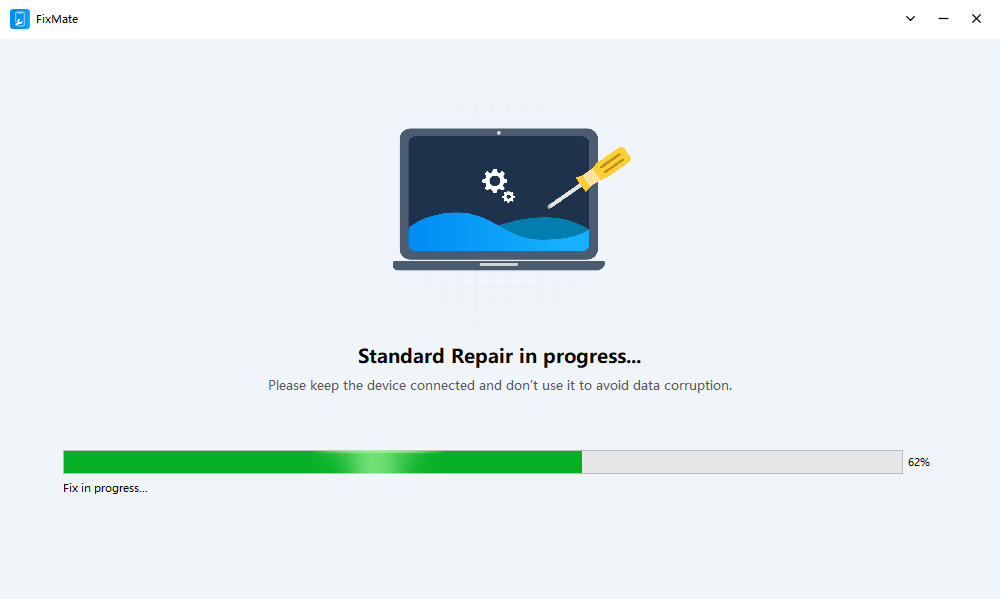
- Sluit je iPhone met een compatibele USB-kabel aan op de computer, start FixMate en selecteer de juiste iOS-systeemreparatieoptie: Standaardreparatie of Grondige reparatie.
- Volg de instructies op het scherm om d Download het firmwarepakket dat voor uw apparaat wordt aanbevolen.
- Bevestig de reparatie en laat FixMate het reparatieproces voltooien.
- Zodra de reparatie is voltooid, koppelt u de iPhone los en controleert u of het installatieproces normaal verloopt.
3. Conclusie
Als het proces vastloopt op 'Voltooien op nieuwe iPhone', kan de opwinding van het instellen van een nieuw apparaat snel verdwijnen. Gelukkig is het probleem vaak tijdelijk en kan het worden opgelost door je wifi-verbinding te controleren, beide apparaten opgeladen te houden, de iPhones opnieuw op te starten, iOS bij te werken of een iCloud-back-up te gebruiken in plaats van een directe overdracht.
Als het probleem na deze basisoplossingen aanhoudt, kan het gaan om een ernstiger iOS-systeemfout. In dat geval is AimerLab FixMate een nuttige optie voor geavanceerde iPhone-systeemreparaties. Het begeleide reparatieproces kan helpen bij het oplossen van systeemgerelateerde problemen zonder dat ingewikkelde handmatige probleemoplossing nodig is.
Voor gebruikers die de standaardoplossingen hebben geprobeerd maar nog steeds niet voorbij het installatiescherm komen,
FixMate
Dit is een praktische laatste optie voor probleemoplossing die het proberen waard is voordat u professionele hulp inschakelt.
- Hoe los ik het probleem op dat iOS 26 er eeuwen over doet om te downloaden?
- Hoe kan ik veelbezochte locaties op mijn iPhone zien?
- Waarom is iOS 26 zo traag?
- Hoe los ik de foutmelding "Er is een fout opgetreden bij het verifiëren van de toegangscode van mijn iPhone" op?
- Hoe download ik de iOS 27 bèta op mijn iPhone?
- Hoe los ik het probleem op dat mijn iPhone vastloopt op 'Bestand laden'?
- Hoe Pokemon Go op de iPhone te vervalsen?
- Overzicht van Aimerlab MobiGo GPS-locatiespoofer
- Hoe verander je de locatie op je iPhone?
- Top 5 nep-GPS-locatiespoofers voor iOS
- GPS-locatiezoekerdefinitie en spoofersuggestie
- Hoe u uw locatie op Snapchat kunt wijzigen
- Hoe locatie op iOS-apparaten vinden/delen/verbergen?